
How to Change Your AirDrop Name on Mac
Rename your Mac so AirDrop shows a name you recognize instead of a generic default. Here's the exact path.
Founder & Lead Technician
Quick answer
To change your AirDrop name on Mac, open System Settings, click General then Sharing, and edit the Computer Name field. On older macOS, use System Preferences then Sharing. AirDrop uses this Computer Name, so the change appears to nearby devices instantly.
Your AirDrop name on a Mac is just your computer's name, so to change it you edit the Computer Name in System Settings. Go to System Settings > General > Sharing (or System Preferences > Sharing on older macOS), edit the Computer Name field, and you're done, AirDrop instantly shows the new name to everyone nearby. No restart needed in most cases. Below is the exact path for both new and old macOS, plus a couple of related tweaks worth knowing.
This matters more than it sounds. When you're in a room full of "MacBook Pro" and "John's Mac" devices, a clear, personal name means people send files to the right machine, and you stop second-guessing which device is yours in the AirDrop sheet.
Change Your AirDrop Name on Modern macOS
On macOS Ventura and later, the setting moved into the redesigned System Settings.
- Open System Settings from the Apple menu.
- Click General in the sidebar, then Sharing.
- At the top, find the Computer Name field (or click the Edit button beside it).
- Type your new name, using letters, numbers, dashes, and underscores.
- Press Return or click OK to save.
The change takes effect right away. Open the AirDrop sheet on another device and you'll see the updated name.
On Older macOS (System Preferences)
If you're on Monterey or earlier, the route is slightly different.
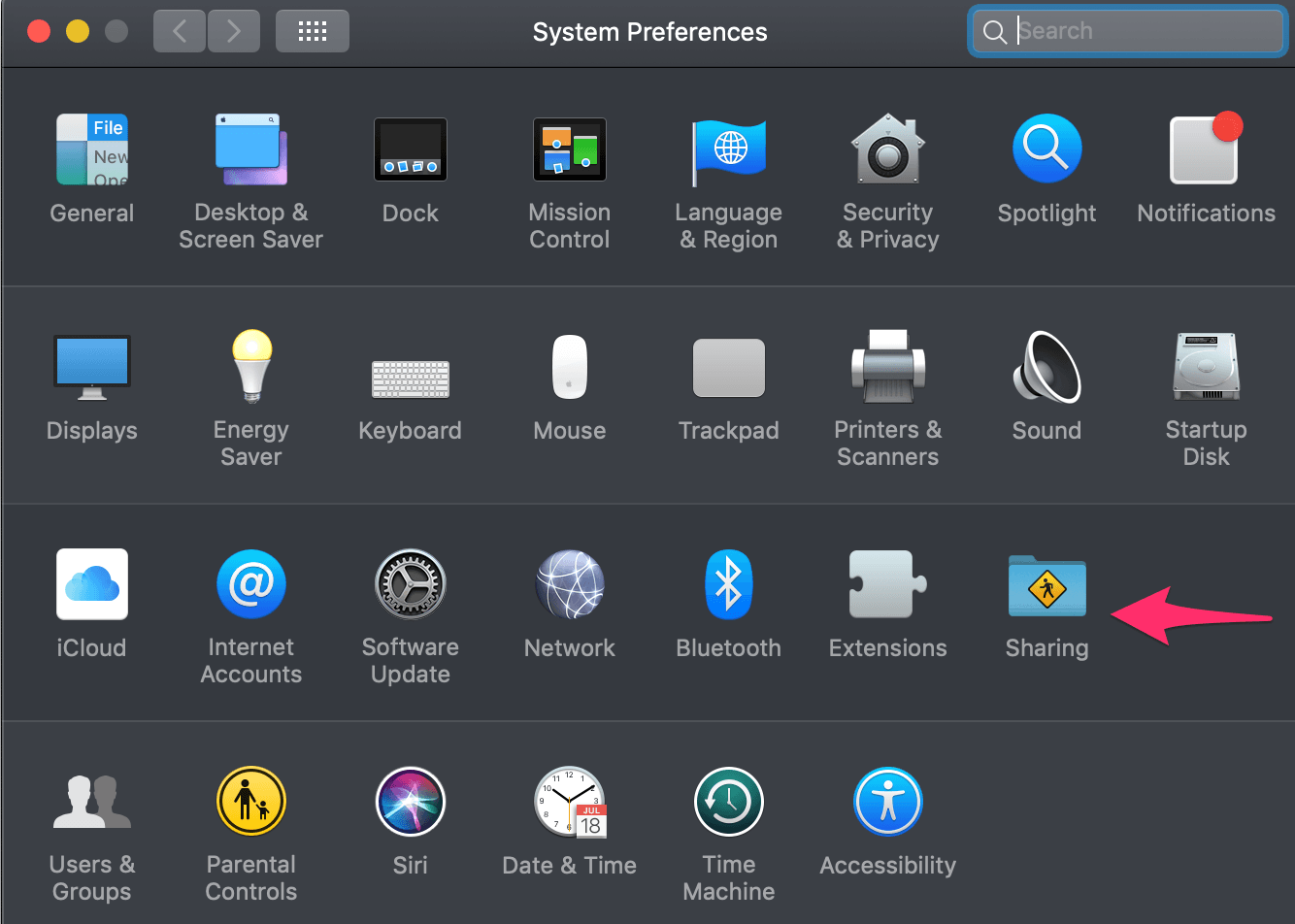
- Go to Apple menu > System Preferences.
- Click Sharing.
- If the settings are locked, click the lock icon at the bottom left and enter your admin password.
- Edit the Computer Name field at the top.
- Close the window to save. Restart only if macOS prompts you.
Why Your AirDrop Name Is Your Computer Name
People expect AirDrop to have its own name field somewhere, and it doesn't, which is why this trips so many users up. AirDrop is built on the same Bonjour networking layer macOS uses to advertise your machine on the local network. When your Mac announces itself for file sharing, screen sharing, or AirDrop, it broadcasts one identity: the Computer Name. So there's no separate AirDrop label to edit, change the Computer Name and every one of those services updates with it. Understanding this saves you from hunting through the AirDrop window for a setting that was never there.
What's the Difference Between the Name and the Hostname?
Your Mac actually has two names, and it's easy to confuse them.
| Name Type | What It Controls | Where to Change It |
|---|---|---|
| Computer Name | AirDrop, Finder sharing, what people see | Sharing settings |
| Local Hostname | Network address (ends in .local) | Sharing > Edit button |
| Apple ID Name | Shared documents, Apple services | appleid.apple.com |
For AirDrop, you only care about the Computer Name. The hostname is the network-friendly version, no spaces, ideally under 15 characters, and macOS usually updates it automatically when you change the Computer Name.
Pro tip: Keep the name clean and recognizable but not too personal. AirDrop broadcasts this name to nearby devices when discovery is open, so "Sara-MBP" is friendlier and safer in public than your full legal name.
How Your iPhone or iPad AirDrop Name Compares
If you also want to fix the name on your other Apple gear, the path is different, and it's worth knowing because people often assume it's the same. On an iPhone or iPad, the AirDrop name comes from the device name, which you change under Settings > General > About > Name. On some iOS versions it's tied to the name on your Apple ID contact card instead. Either way, edit it there, then reopen the AirDrop sheet to confirm. The key difference: Mac pulls from Sharing settings, while iPhone and iPad pull from the About screen. Same feature, two different menus depending on the platform.
Bonus: Update the Name Tied to Your Apple ID
The name attached to your Apple ID, the one that appears on shared documents and some Apple services, is separate from your computer name. To change it, sign in at appleid.apple.com, click Edit next to your name, update your first name, last name, or nickname, and confirm with the security code sent to a trusted device. Give your signed-in devices a moment to refresh.
If AirDrop Still Shows the Old Name
Occasionally the name lingers on another device. Work through these in order:
- Toggle Wi-Fi and Bluetooth off and back on, AirDrop relies on both.
- Close and reopen the AirDrop sheet on the sending device.
- On the sending device, toggle Airplane Mode on for a few seconds, then off, to flush its cache of nearby names.
- As a last resort, restart the Mac to clear the broadcast name completely.
The reason the old name sticks is caching. The other device remembers names it has seen recently so the AirDrop sheet loads fast, and it doesn't always re-query immediately. Forcing the radios or the app to refresh clears that stale entry. If a single specific device keeps showing the old name while everything else is correct, the problem is that device's cache, not your Mac.
When AirDrop Won't Show Up at All
Sometimes the name is the least of your worries, the device just doesn't appear in the AirDrop window. A handful of settings are almost always to blame. Both machines need Wi-Fi and Bluetooth turned on, because AirDrop pairs them: Bluetooth discovers nearby devices and Wi-Fi carries the actual file. Check the receiving Mac's AirDrop visibility too, open Finder, choose Go > AirDrop, and set Allow me to be discovered by to Everyone or Contacts Only. If it's set to No One, you're invisible no matter how good your name is. Personal Hotspot on an iPhone blocks AirDrop entirely, so switch it off if you're transferring between your own devices. And keep the two devices within about 30 feet, AirDrop is a short-range, peer-to-peer link, not a Wi-Fi-network transfer, so distance and walls genuinely matter.
Picking a Name That Works Everywhere
A little thought when you name the Mac saves friction later across every Apple service that reuses the Computer Name. Stick to letters, numbers, dashes, and underscores; avoid emoji and accented characters, which can render oddly on older devices or break the auto-generated hostname. Keep it short enough to read at a glance in a crowded AirDrop sheet, something like Sara-MBP or Office-iMac beats Sara's Brand New Space Gray MacBook Pro 16-inch. If the Mac is shared or used in public, lean toward a role-based name rather than a personal one, since that name is broadcast to strangers whenever discovery is open. And remember the same name shows up in Finder's sidebar for screen sharing and in your router's device list, so a clear, consistent name pays off well beyond AirDrop.
Renaming a Work or School-Managed Mac
If your Mac belongs to a company or school, you may find the Computer Name field grayed out or locked. Managed devices are often configured through Mobile Device Management, which can enforce a naming convention and prevent users from editing it. If the field won't budge, that restriction is set by your IT administrator, not a bug on your end, and the fix is to ask them to change it or grant permission rather than trying to force it. The same applies if you don't have an admin account on the Mac; on older macOS you'll need to click the lock and enter admin credentials before the Sharing settings will accept an edit. For personal machines this is never an issue, but it's the single most common reason people report that "the AirDrop name won't change" when everything else looks right.
Worth knowing: Hostnames can't contain spaces, and keeping the name under about 15 characters avoids odd truncation on older devices and network setups. If you used spaces, macOS swaps them for dashes in the hostname automatically.
Frequently asked questions
Why does my AirDrop show a generic name on Mac?+
AirDrop displays your Mac's Computer Name, and if you never changed it, macOS uses a default like your account name plus the model. To personalize it, open System Settings, go to General then Sharing, and edit the Computer Name field. The new name appears in the AirDrop sheet on nearby devices right away.
Do I need to restart my Mac after changing the AirDrop name?+
Usually no. On modern macOS the Computer Name updates immediately and AirDrop reflects it without a restart. Older versions may occasionally prompt you to restart, or you might need to toggle Wi-Fi and Bluetooth so other devices pick up the change. A restart is only a last resort if the old name lingers.
Is the AirDrop name the same as my Apple ID name?+
No, they're separate. The AirDrop name is your Mac's Computer Name set in Sharing settings. Your Apple ID name, which shows on shared documents and Apple services, is changed at appleid.apple.com. Updating one does not change the other, so adjust whichever name is actually appearing where you want it changed.
Founder & Lead Technician
Harjindar founded Ask Technicians to cut through bad tech advice. He writes hands-on troubleshooting guides drawn from years of real-world repair and support work.
Related guides

How to Use Google Messages for Web on PC or Mac
Text from your computer keyboard using Google Messages for web: pair once with a QR code and send SMS, RCS, photos, and group chats from any browser.
How to Remove or Change the Wallpaper on Your iPhone
Swap, reset, or strip back your iPhone wallpaper in under a minute, with fixes for live photos, blurry images, and stuck lock screens.

How to Update Zoom on Windows or Mac (2026 Guide)
Update Zoom on Windows or Mac in under a minute, turn on automatic updates, and fix a stubborn client with a clean reinstall.

How to Create an ePass Account: A Step-by-Step Setup Guide
Register an ePass account in minutes to access secure online services, with two-factor protection and a single login across devices.